
When to Stop Standing Desk Troubleshooting—and What to Identify First
This page helps check warning signs and identify the desk model, controls and symptom. Do not repeat reset attempts or follow generic repair instructions found online.
When to Stop Troubleshooting
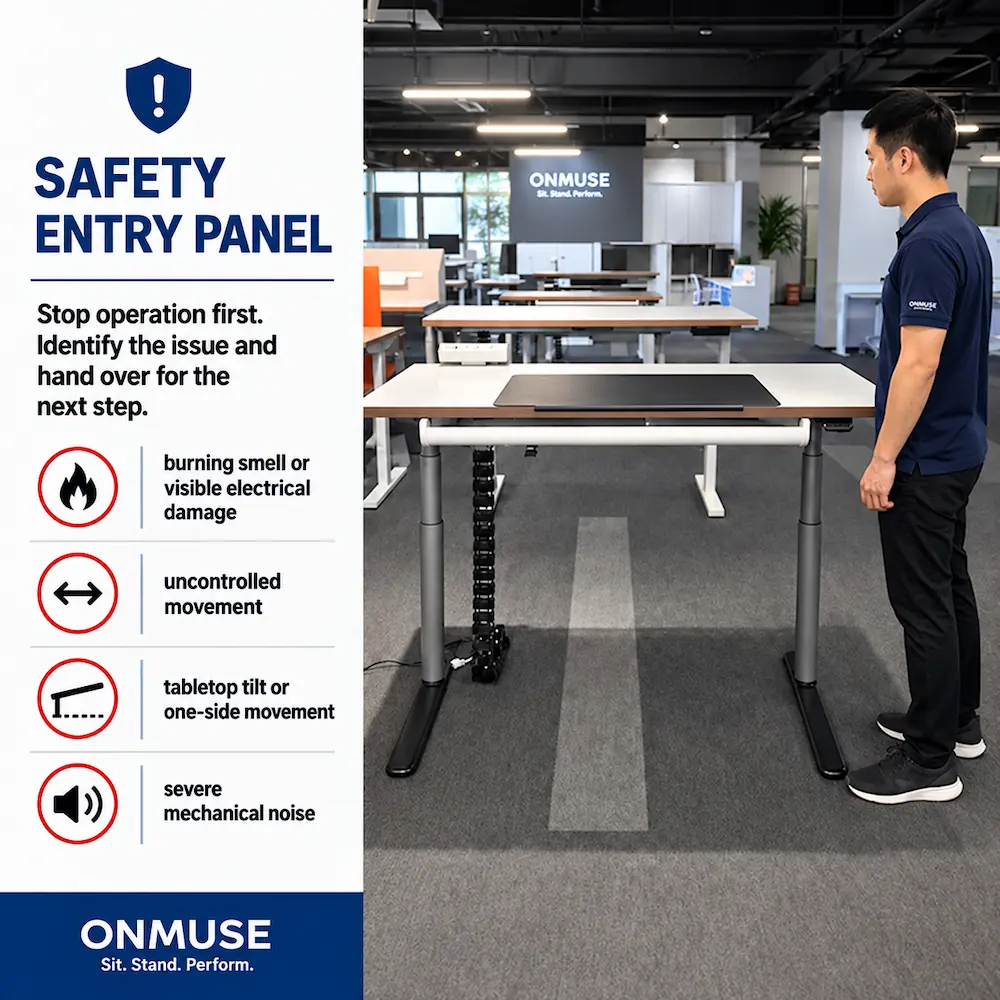
Stop troubleshooting if you notice a burning smell, visible electrical damage, uncontrolled movement, tabletop tilt, movement on one side only or severe mechanical noise. Do not press buttons. Do not use the desk again. Record the model, controller and observed symptom.
Do not force the desk down, open electrical components, rewire or short-circuit connections, work on live electrical parts, swap components, bypass safety functions or attempt internal repairs.
Continue with Desk Identification
If no warning signs are present, confirm the desk model, controller or handset, observed symptom and any recent changes.
Written by: Shijun Li
Product and configuration review: Onmuse Product Engineering
Review method: Systematic reviews were prioritized over individual promotional studies. Product facts were reviewed separately against current product documentation.
Last substantive review: August 4, 2026
Identify the Standing Desk and Control System First
Do not rely on generic reset instructions found online. First record the desk model, control box, handset and any assembly, relocation, part replacement or cable changes made before the problem began. This helps match the issue to the correct manual or troubleshooting resource.
Record the Current State
Note the display, LED or app status, movement direction, observed symptom and recent changes.
Identify the Standing Desk and Control System First
Do not rely on generic reset instructions found online. First record the desk model, control box, handset and any assembly, relocation, part replacement or cable changes made before the problem began. This helps match the issue to the correct manual or troubleshooting resource.
Record the Desk References
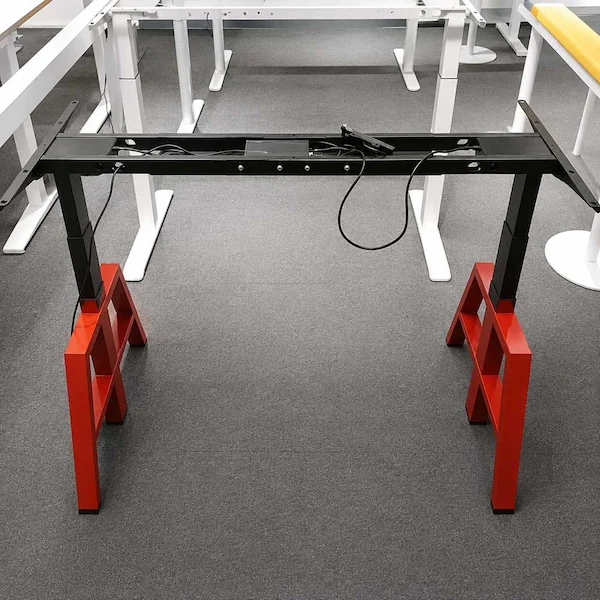
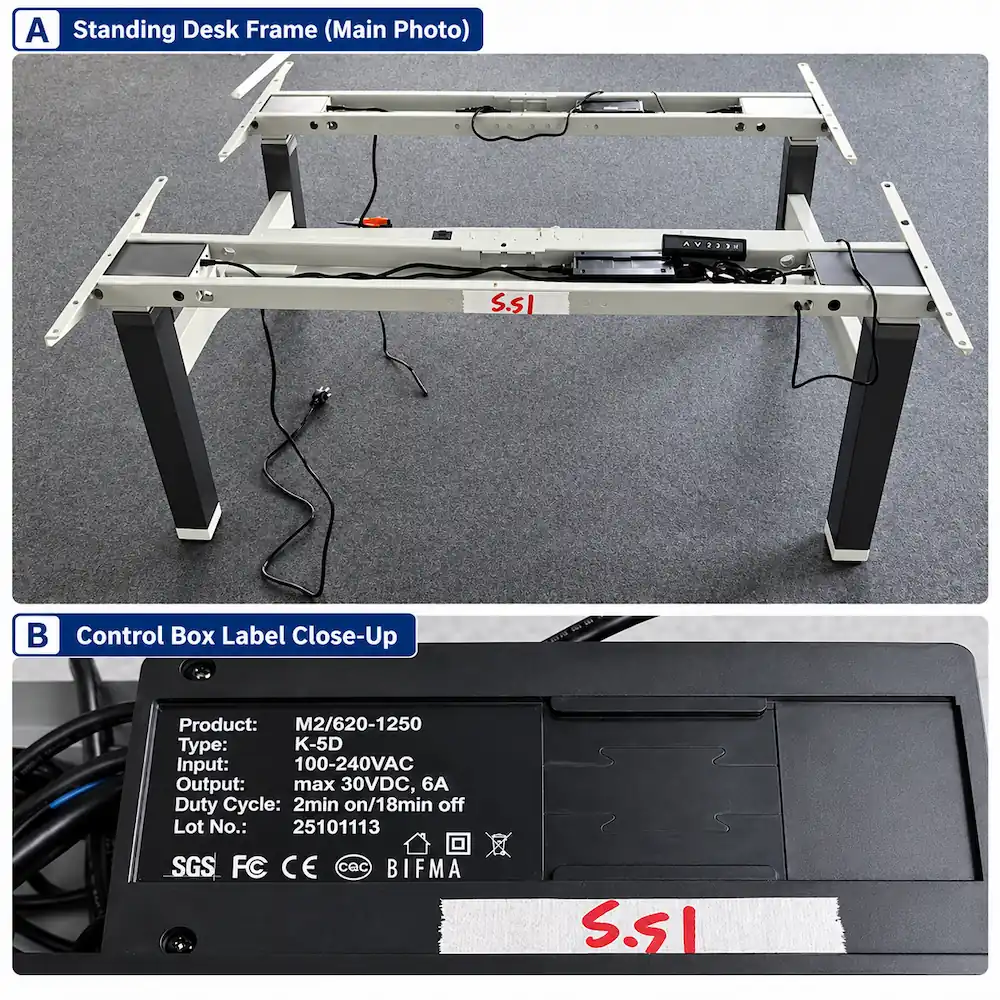
From the available product labels, record the series, model or SKU, together with any order, carton or production reference. Include a clear photo of each available label.
Identify the Control System
Photograph the control box, handset, control panel, motor and visible connectors. Record only the model, part number (PN) and version shown. Note the controller generation or communication protocol only when stated on a label or official product document.
Record the Current State
Note the display, LED or app status, movement direction, observed symptom and recent changes.
Record Visible Conditions Before Finding the Right Resource
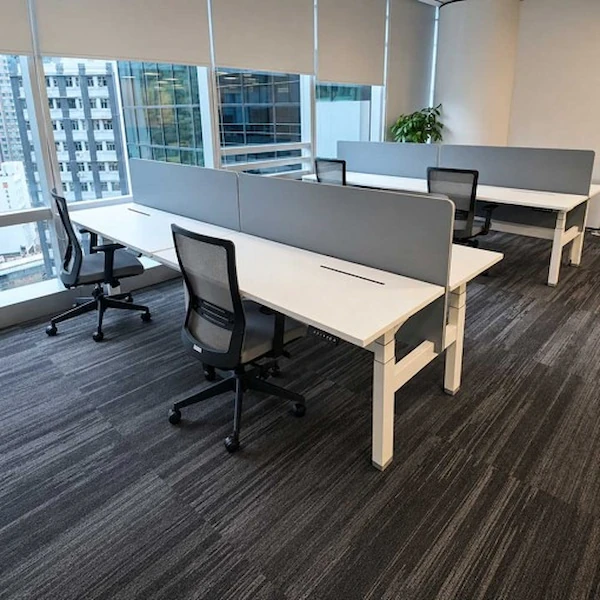
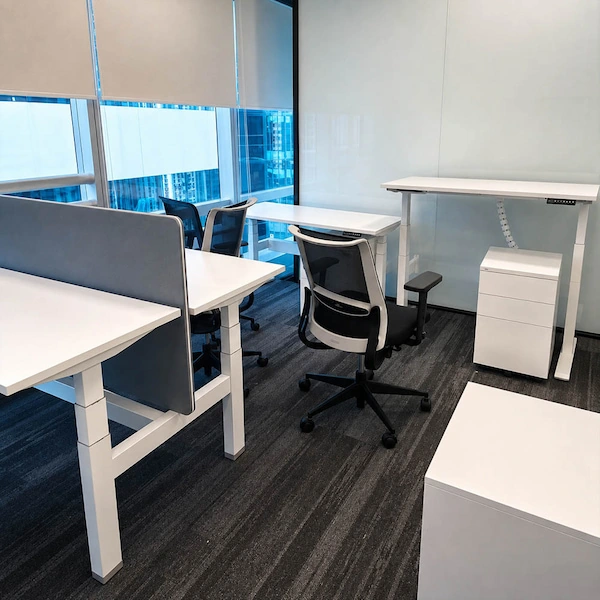
After the initial safety screening, record the desk’s current external condition to help determine which resource should be reviewed next. These observations help guide the next step; they do not confirm the cause of the problem.
What You Can Record
Note the power or display status; the visible condition of external cables and connectors without handling live parts; any obstruction, restricted clearance in the desk’s travel path or cable snag; recent changes to the desktop, equipment or load; and any visible changes to the desktop, frame or alignment. Also record the title, version or revision of the manual or guide currently in use, if available.
When to Stop
Stop if further review would require opening components, moving internal connectors, rewiring, swapping parts or bypassing a safety function.
Match the Requested Action to the Correct Resource
Reset, initialization, synchronization, calibration and settings reset are not interchangeable. Use the troubleshooting information already collected to determine which action is being requested, then match that action to the appropriate resource category and version.
Define the Requested Action
State whether the request concerns reset, initialization, synchronization, calibration or settings-related help. Compare any displayed code only with the selected resource; do not interpret the code or use it to diagnose a fault.
Verify the Resource
Review the resource type, title, revision, date or version, intended task and target market where relevant. Record whether its access status is public, available on request or restricted. This review does not establish that a resource exists, applies, is current or can be disclosed. If the correct resource cannot be matched because setup or electrical configuration remains unclear, continue to configuration review.
Separate Setup, Resource and Electrical Questions
First confirm when the problem began and what was observed. Timing may change the review direction, but it does not prove an installation error or product fault.
Installation and Resource Context
Record whether the issue appeared during assembly, first use, relocation or later use. Check whether the instructions, supplied parts and labels refer to the same product and version. Note any visible installation or connection concern without making adjustments.
Product and Electrical Context
Record the voltage, frequency, plug type, target market and any recent changes to the controller or power-related components. These details help determine whether the next review should focus on installation, the instructions or the electrical configuration. Organize the relevant labels, photos, change history and order information for technical review. Gather the relevant labels, photos, change history and order information for technical review.